
Cliparr exports clips in the browser. Video formats use Mediabunny, while GIF exports use Cliparr’s optimized GIF encoder with worker-backed frame processing. Open the export dialog from the editor after choosing a clip range, then review the output settings, summary, and estimated size before saving the file.
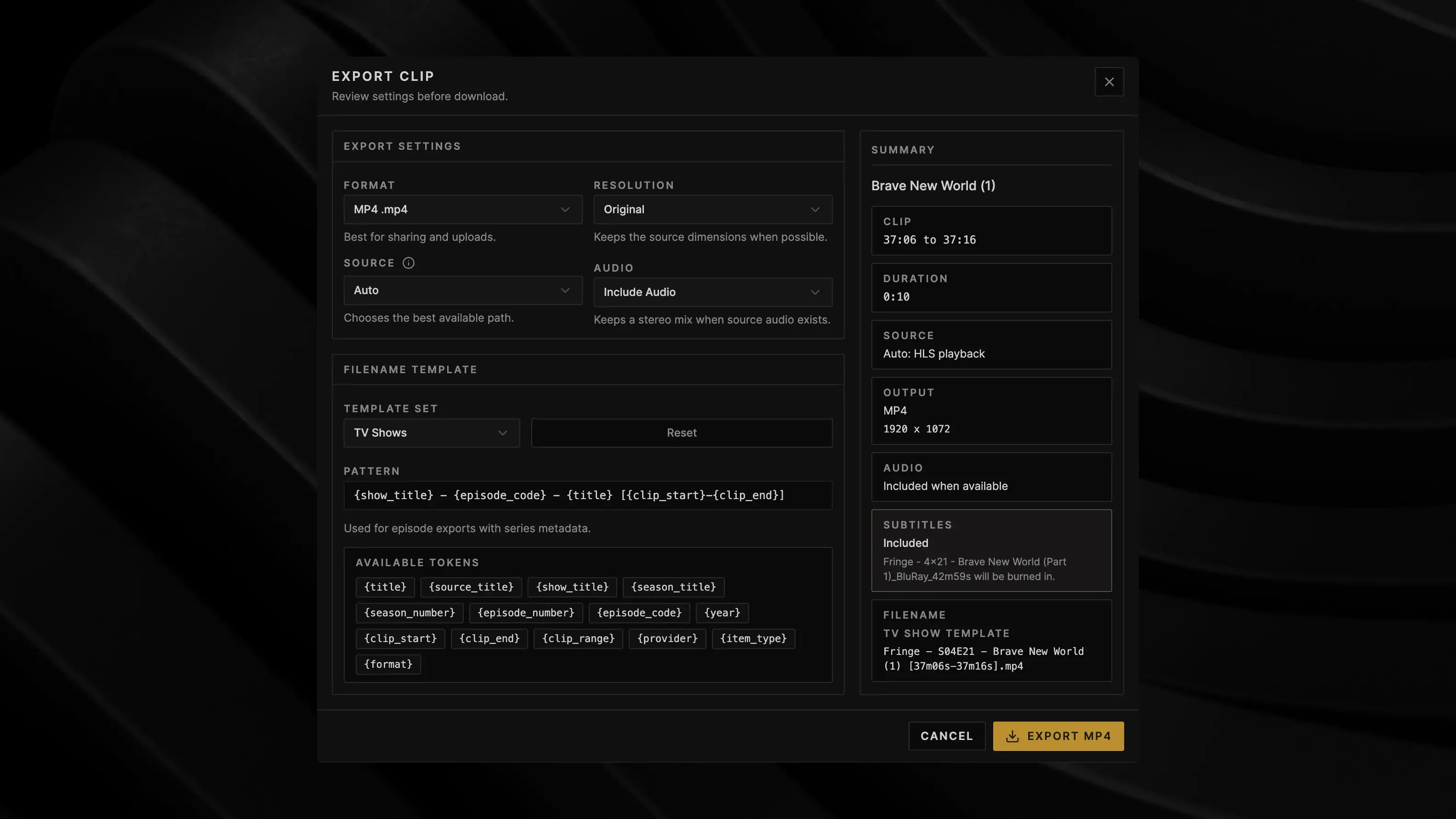
Format
| Format | Best for |
|---|---|
MP4 | Sharing, uploads, and general compatibility. |
WEBM | Efficient web playback. |
MOV | Editing workflows that prefer QuickTime-style containers. |
MKV | Flexible container support. |
GIF | Short animated-image exports for platforms that require GIF. |
Codec availability depends on the browser and source media. If an export cannot keep the selected audio or video track in the chosen container, Cliparr stops the export and shows the reason instead of silently dropping important media.
Use WEBM instead of GIF when your destination supports video files. GIF is useful for compatibility with older platforms, but it is video-only, capped at 15 seconds, and usually much larger than a modern video export.
Quality
The Quality control is available for every export format. Video exports use
Compact, Balanced, and Sharp; GIF exports also include Efficient for a
smaller tuned animated-image preset.
| Quality | Video behavior | GIF behavior |
|---|---|---|
Compact | Forces a smaller, lower-bitrate transcode. | 360p max, 10 fps, 64 colors. |
Efficient | Not shown for video exports. | 432p max, 12 fps, 128 colors with soft spatial and temporal dithering. |
Balanced | Forces a moderate-bitrate transcode for a smaller file than Sharp. | 480p max, 12 fps, 128 colors with soft spatial and temporal dithering. |
Sharp | Preserves the source stream when possible, or uses the highest current default. | 720p max, 18 fps, 128 colors with soft spatial and temporal dithering. |
For video, Sharp is the safest choice when you want the closest match to the source. Use Balanced or Compact when file size matters more than preserving the original stream. For GIF, Balanced is the default because it preserves readable motion and detail. Choose Efficient when Balanced is slightly too large, or Compact when file size matters most. Sharp keeps the same tuned 128-color temporal dither but spends the file-size budget on higher resolution and smoother motion.
GIF clips longer than 15 seconds are blocked before export starts. Trim the range or choose WEBM for longer animated clips.
Resolution
| Resolution | Behavior |
|---|---|
Original | Keeps the source dimensions when possible. |
1080p | Scales the output to 1080 pixels tall while preserving aspect ratio. |
720p | Scales the output to 720 pixels tall while preserving aspect ratio. |
Use Original when you want the closest match to the source. Use 1080p or 720p when you want a smaller export for sharing or faster downloads.
GIF exports apply the selected quality preset’s maximum height even when resolution is set to Original.
Source
Cliparr may have more than one media path for the same item. The export source chooses which path Mediabunny reads when creating the final file.
| Source | Behavior |
|---|---|
Auto | Chooses the best available path. It can use a direct fallback when HLS playback is not export-friendly. |
Direct/original | Uses provider direct media, a local file, or a direct media URL when available. |
HLS playback | Uses the playback stream. This is useful when the playback stream is the only available export source. |
For most clips, leave source on Auto. Choose a specific source when troubleshooting an export or when you intentionally want the playback stream rather than direct media.
Audio
Use Include Audio for normal video clips. Cliparr keeps a stereo mix when source audio exists. Use Video Only when you want a silent clip or when the source audio is not needed. GIF exports are always video-only, so audio is disabled for that format.
Estimated size
The export dialog shows an immediate estimated size in the footer before export starts. For direct sources, Sharp video exports can use source-size or bitrate metadata when available. HLS exports can use playlist bandwidth metadata. Other estimates use deterministic codec heuristics based on format, quality, duration, dimensions, audio, and subtitle burn-in.
Treat the value as approximate. Exact output size still depends on source motion, detail, browser codec behavior, GIF palette/dither behavior, and whether Cliparr must transcode.
Filename templates
Filename templates are stored in your browser. Cliparr keeps separate defaults for movies and episodes, then fills available tokens from provider metadata and the selected clip range.
Default movie template:
{source_title} ({year}) [{clip_start}-{clip_end}]Default episode template:
{show_title} - {episode_code} - {title} [{clip_start}-{clip_end}]Available tokens:
| Token | Notes |
|---|---|
{title} | Item or clip title. |
{source_title} | Source item title. |
{show_title} | Series title for episode exports. |
{season_title} | Season title when available. |
{season_number} | Two-digit season number. |
{episode_number} | Two-digit episode number. |
{episode_code} | Episode code such as S02E05. |
{year} | Source year when available. |
{clip_start} | Rounded clip start, formatted for filenames. |
{clip_end} | Rounded clip end, formatted for filenames. |
{clip_range} | Start and end together. |
{provider} | Provider id such as plex, jellyfin, or local. |
{item_type} | Item type such as movie, episode, or video. |
{format} | Selected export format. |
Unsupported or missing token values resolve to empty text, and Cliparr sanitizes generated filenames for filesystem compatibility.
Metadata
Provider-backed video clips can include title, show, season, episode, artwork, rating, and Cliparr timing metadata when the source provides it. Local files and direct URLs include only best-effort metadata. GIF exports do not embed metadata. See Export metadata for the full metadata table.